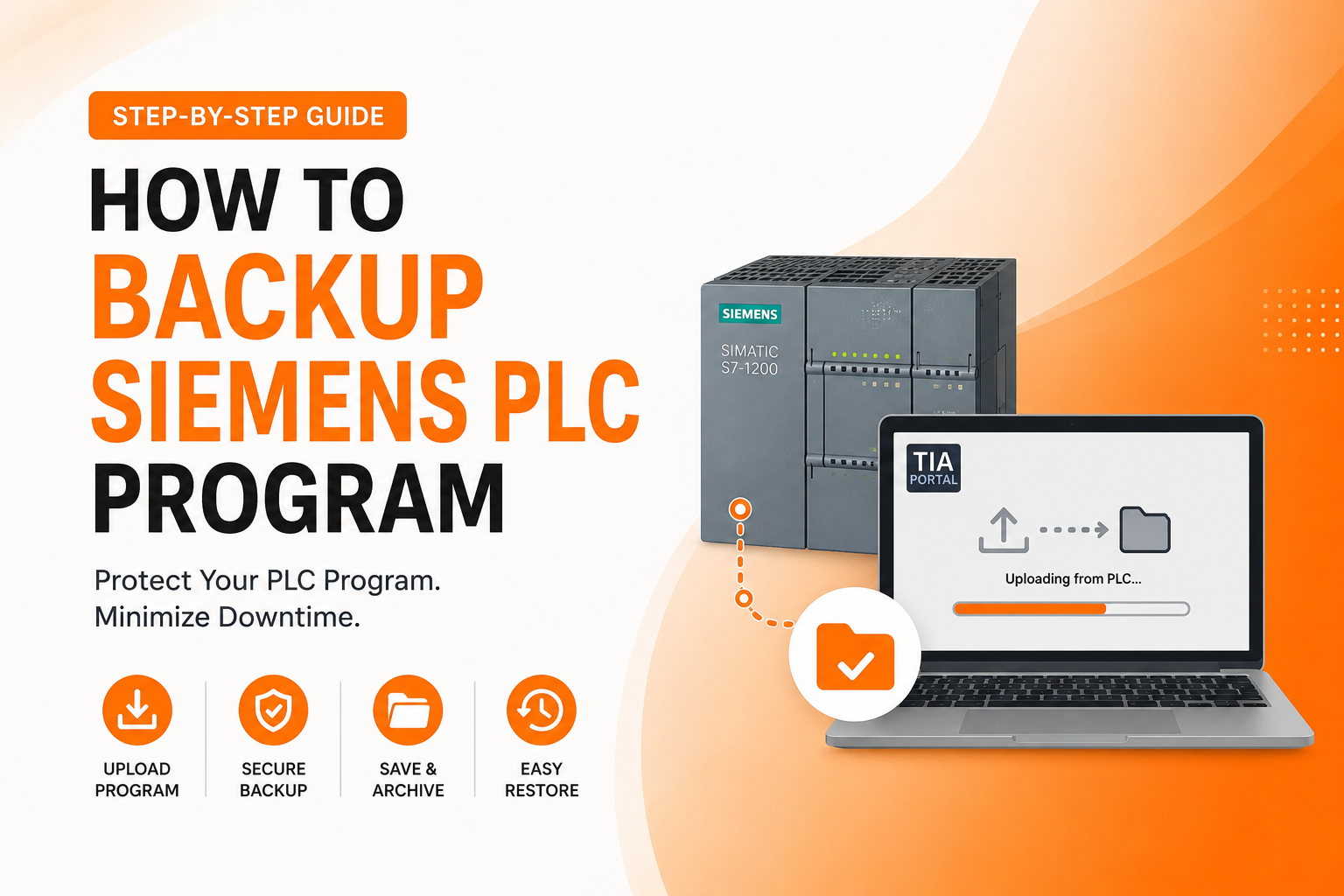
If you work with industrial automation systems, you already know that a single PLC failure can shut down an entire production line in seconds. What most engineers do not think about until it is too late is whether their Siemens PLC program is actually backed up somewhere safe.
A missing or outdated backup turns a simple CPU swap into hours of guesswork, lost logic, and expensive downtime. In this guide, we will walk through exactly how to backup a Siemens PLC program using TIA Portal, what a proper backup should include, and the mistakes that trip up even experienced technicians.
Whether you are running an S7-1200 in a small packaging cell or an S7-1500 controlling a full plant line, this guide covers the process from start to finish.
What you will learn:
- What backing up a Siemens PLC actually means
- Why backups matter more than most teams realize
- What hardware, software, and access you need before you start
- The exact TIA Portal steps to back up a program
- How backup differs across S7-1200, S7-1500, and older CPUs
- Common errors and how to fix them
- Best practices that professional integrators actually follow
What Does Backing Up a Siemens PLC Program Mean?
Quick answer: Backing up a Siemens PLC program means uploading the complete project data, or whatever data is available, from the physical controller to an engineering computer so it can be restored later if the original project file is lost or the hardware fails.
Many engineers assume the “backup” lives only on their laptop, inside the original TIA Portal project. That assumption falls apart the moment a laptop is lost, a hard drive fails, or the project was built by someone who left the company years ago.
A true PLC backup is a second, independent copy of the working logic that exists specifically because the CPU itself holds the program that is currently running your equipment. If your laptop file and the CPU program are not the same, the CPU is the source of truth, and that is exactly what a backup captures.
Why this matters:
- The CPU is running the current production logic right now, whether or not anyone documented every change
- Uploads capture undocumented edits made directly on the machine floor
- A backup gives you a recovery path that does not depend on finding an old laptop or a former employee
Real-world example: A food packaging plant in Ohio had an S7-1500 fail during a night shift. The maintenance team had a project file from the original integrator, but three years of tuning changes made directly on the CPU were never saved back to that file. Without a recent upload backup, they lost those three years of process improvements and had to reconstruct them from scratch.
Why Is PLC Backup Important?
Quick answer: A proper backup minimizes production downtime, protects against hardware failure and accidental deletion, and makes troubleshooting and future upgrades far faster and less risky.
Here are the situations where a backup becomes the difference between a ten-minute fix and a multi-day outage.
CPU replacement
Siemens CPUs do fail, especially older units running in hot or vibration-heavy environments. Swapping a dead CPU takes minutes if you have a backup ready to download. Without one, you are rebuilding logic from memory.
Software corruption
Firmware updates, power interruptions during a write operation, and memory card failures can all corrupt a project. A clean backup lets you restore the controller to a known-good state.
Unexpected PLC failure
Power surges, moisture, and physical damage happen. A backup means the hardware is replaceable without losing years of programming work.
Disaster recovery
Fires, floods, and theft do not care how good your automation program is. Off-site or cloud-stored backups protect against total site loss.
Version control
Backups taken at regular intervals give you a history of changes, which is invaluable when a “new” problem turns out to be an old change that nobody remembers making.
Faster maintenance
Technicians troubleshooting a fault can compare the running program against a known backup to spot unauthorized or unexpected changes quickly.
Things You Need Before Backing Up a Siemens PLC
Before you connect to the controller, make sure you have the right hardware, software, and access in place. Missing any one of these is the most common reason a backup attempt stalls halfway through.
Hardware requirements:
- A laptop or engineering PC with an available Ethernet port
- The Siemens PLC itself, powered on and network accessible
- An Ethernet cable, straight-through is fine on most modern switches
- A network switch, optional, useful when the PLC is already on a managed network
Software requirements:
- Siemens TIA Portal, matched to a version that supports your CPU family
- STEP 7, required for older S7-300 and S7-400 systems not managed in TIA Portal
- Confirmation that your PLC’s firmware version is supported by your installed TIA Portal version
Access requirements:
- The correct IP address of the PLC, or the ability to scan for it on the network
- Communication access, meaning no firewall or managed switch is blocking the connection
- The right permission level, since password-protected CPUs will block an upload until authenticated
- A compatible project version, since opening a newer backup in an older TIA Portal version is not always possible
If any of these are missing, stop before you start. Attempting an upload without the correct access level often triggers a partial or failed backup that is worse than having no attempt at all, since it can look complete when it is not.
Which Siemens PLCs Support Program Backup?
Most Siemens CPUs support some form of program backup, though the method and completeness varies by family.
- S7-1200: Full support through TIA Portal, straightforward upload process
- S7-1500: Full support with additional options for password-protected blocks and know-how protection
- S7-300: Supported through STEP 7 or TIA Portal depending on the CPU generation, with some older units limited in what can be uploaded
- S7-400: Similar to the S7-300, backup capability depends heavily on CPU age and firmware
- ET 200 CPUs: Distributed CPUs generally follow the same upload process as their S7 counterparts, since they run on the same TIA Portal engineering framework
If you are working on an older S7-300 or S7-400 system originally programmed in classic STEP 7, be aware that not everything migrates cleanly into TIA Portal. Comments, symbol tables, and some block structures can behave differently between the two platforms, so always verify the upload against the original documentation when one exists.
Types of Siemens PLC Backup
There is more than one way to back up a Siemens PLC, and the right method depends on what you are trying to protect against.
1. Complete project backup
This is a full TIA Portal project file saved to your engineering computer, ideally right after commissioning and after every significant change. Use this as your primary source whenever the original project is available and current.
2. Upload device as new station
This method pulls the program directly from the CPU into a brand new TIA Portal project, independent of any existing file. Use this when you do not trust the original project file, when it is missing, or when you suspect the CPU has been modified since the last known project version.
3. Memory card backup
Many Siemens CPUs support saving the program directly to a memory card, sometimes called a Program/Retentive card. Use this as a fast, offline backup that lives with the hardware itself, useful for quick recovery in the field.
4. Archive project backup
TIA Portal can compress an entire project into a single archive file. Use this for long-term storage, sending to a client, or keeping in a version-controlled folder structure.
5. Online backup
Some organizations run scheduled uploads while the PLC is online and running, capturing the current state without interrupting production. Use this for critical systems where manual backups are easy to forget.
How to Backup Siemens PLC Program Using TIA Portal (Step-by-Step)
Here is the full process for backing up a Siemens PLC program using TIA Portal, from connection to archive.
Step 1: Connect your computer to the PLC
Plug an Ethernet cable directly from your laptop to the PLC’s communication port, or connect both to the same network switch.
Step 2: Configure your network adapter
Set your laptop’s Ethernet adapter to an IP address on the same subnet as the PLC. If the PLC is set to 192.168.0.1, for example, your adapter should be set to something like 192.168.0.99 with a matching subnet mask.
Step 3: Open TIA Portal
Launch TIA Portal and start a new project, or open the project explorer if you plan to upload into an existing one.
Step 4: Detect accessible devices
Go to the Online tools and select “Accessible devices.” TIA Portal will scan the connected network interface and list any PLCs it can reach.
Step 5: Select the PLC
Choose your target controller from the list. Confirm the device type and IP address match what you expect before continuing.
Step 6: Upload device to PG/PC
Right-click the detected device and choose “Upload device to PG/PC.” This pulls the hardware configuration, program blocks, and available data from the CPU into your TIA Portal project.
Step 7: Save the uploaded project
Once the upload completes, save the project immediately under a clear, dated file name. Do not overwrite an older backup until you have confirmed the new one opens correctly.
Step 8: Archive the project
Use TIA Portal’s “Archive” function to compress the entire project into a single portable file. Store this archive in at least one location separate from your primary engineering computer.
How to Backup Siemens S7-1200 PLC
The S7-1200 is one of the most common CPUs in small to mid-size automation cells, and its backup process is generally the simplest of the S7 family.
Specific instructions:
Connect directly to the CPU’s Ethernet port and follow the standard TIA Portal upload process described above. Most S7-1200 units do not require special driver installation beyond a current TIA Portal license.
Common settings:
Check the CPU’s protection level before uploading. If it is set to “No protection” or “Write protection,” the upload should proceed without issue. Full access protection will require the correct password.
Tips:
S7-1200 CPUs often use a memory card as well, so if you have physical access to the controller, pulling a memory card backup alongside the TIA Portal upload gives you two independent copies with almost no extra effort.
How to Backup Siemens S7-1500 PLC
The S7-1500 is built for larger, more complex systems and includes additional protection features that affect how backups work.
Additional considerations:
S7-1500 CPUs frequently use know-how protection on individual blocks to protect proprietary logic. An upload will still pull these blocks, but their internal code will remain locked unless you have the correct password.
Protection settings:
Check whether the CPU has copy protection enabled, which ties the program to a specific serial number. This affects restoring the backup to a different physical CPU, not the backup process itself.
Security features:
S7-1500 systems often use access levels tied to specific user accounts rather than a single password. Confirm you have an account with at least read access before attempting the upload, since a locked-out account will fail silently in some TIA Portal versions.
How to Backup Siemens PLC Using a Memory Card
Memory card backups give you a hardware-level copy that does not depend on network access or a working laptop connection.
Supported memory cards:
Siemens SIMATIC Memory Cards are required, available in various sizes depending on your program size and CPU family. Third-party SD cards are not supported for this purpose.
Backup process:
Insert the memory card into the CPU, then use TIA Portal’s card reader function, or the CPU’s built-in copy function, to save the program directly to the card.
Restore process:
Insert a memory card containing a saved backup into a compatible CPU, and the controller will load the program automatically on the next power cycle in most configurations.
Limitations:
Memory card backups can miss certain configuration data depending on CPU settings, and they are tied closely to firmware compatibility. Always pair a memory card backup with a full TIA Portal project backup rather than relying on the card alone.
Difference Between Upload, Download, and Backup
These three terms get mixed up constantly, and using the wrong one on a work order can cause real confusion on a job site.
| Upload | Download | Backup |
|---|---|---|
| PLC to PC | PC to PLC | Secure project copy |
Upload moves the program from the physical controller to your engineering computer. This is the core action behind most backup methods.
Download moves a program from your engineering computer to the physical controller. This is what you do when restoring from a backup or pushing new logic.
Backup is the broader concept, the practice of maintaining a secure, current, and verified copy of the program regardless of which direction the data moved to get there.
What Gets Backed Up During a PLC Backup?
A typical TIA Portal upload captures the following:
- Program blocks, including organization blocks, function blocks, and function calls
- Data blocks, including both global and instance data
- Hardware configuration, covering the CPU, I/O modules, and communication modules
- Device configuration, including network settings and addressing
- Tag tables, covering both PLC tags and, in some cases, HMI tags
- Technology objects, such as motion control or PID configurations
- Recipes, where applicable to the specific application
What may not be fully recoverable without the original project:
Comments, custom symbol names, and some documentation notes are not always stored in the CPU itself and may be lost if the original project file is unavailable. This is one of the strongest arguments for keeping both a project-based backup and a device upload as separate, independent copies.
Common Errors While Backing Up Siemens PLC
PLC not detected
Usually caused by a mismatched IP subnet or a bad Ethernet cable. Confirm both devices are on the same network range and try a direct cable connection to rule out switch issues.
Access level protected
The CPU requires a password or authenticated user account before it will allow an upload. Contact whoever set the original protection level, or check documentation from the original integrator.
Wrong IP address
Double check the address using the CPU’s display panel, if equipped, or scan for accessible devices rather than typing the address manually.
Firmware mismatch
Your TIA Portal version may not support the CPU’s installed firmware. Update TIA Portal, or install the appropriate firmware support package.
Upload disabled
Some CPUs are configured with upload protection enabled specifically to prevent unauthorized copying of the program. This requires administrative access to change.
Communication timeout
Often caused by network congestion, a faulty cable, or a firewall blocking the required ports. Try a direct point-to-point connection to isolate the problem.
Best Practices for Siemens PLC Backup
- Maintain multiple backup copies stored in different physical or cloud locations
- Use clear version numbers and dates in every backup file name
- Include project documentation alongside the backup, not just the code
- Verify backup integrity by opening the file and confirming it loads correctly
- Store backups securely, with access limited to authorized personnel
- Keep a record of the firmware version associated with each backup
- Schedule periodic backups rather than relying on memory to do it manually
How Often Should You Backup a PLC?
Manufacturing plants: After every process change, and at minimum once per quarter even if nothing changed recently.
OEMs: After every machine ships, and again after any field service visit that touches the program.
System integrators: Immediately after commissioning, and after every client-requested modification.
Maintenance teams: Monthly at minimum for critical production lines, with an additional backup taken before any planned firmware update or hardware change.
Backup Checklist Before Maintenance
- Save the latest project file with a clear version name
- Verify communication with the PLC before starting any maintenance work
- Export documentation, including hardware configuration and I/O lists
- Label the project version clearly, including the date and reason for the backup
- Archive the files in at least two separate storage locations
- Test the restoration process on a non-production CPU if one is available
Conclusion
Backing up a Siemens PLC program is one of those tasks that feels optional right up until the moment it is not. A CPU failure, a corrupted memory card, or a simple mistake during a firmware update can wipe out years of programming work in seconds, and the only real protection is a current, verified backup sitting somewhere safe.
The workflow is not complicated. Connect, upload, save, and archive, ideally on a regular schedule rather than only when something feels risky. Pair that with clear documentation and consistent version labeling, and you turn a potential multi-day outage into a routine, low-stress recovery.
Preventive maintenance is always cheaper than emergency recovery. A few minutes spent backing up a PLC program today can save an entire production shift down the road.
Need professional Siemens PLC programming or backup support?
Whether you need PLC program backup, migration, troubleshooting, or a complete automation system built from scratch, our experienced engineers can help minimize downtime and protect your automation assets. Contact us today for reliable Siemens PLC programming and industrial automation services.
Frequently Asked Questions
Can I upload a Siemens PLC program without the original project?
Yes. Use the “Upload device as new station” method in TIA Portal, which builds a new project directly from what is stored on the CPU.
Can I backup a password-protected Siemens PLC?
You can attempt the upload, but you will need the correct access password or user credentials to retrieve the full, unlocked program.
Does TIA Portal recover comments and symbols?
Not always. Comments and custom symbol names are sometimes stored only in the original project file, not on the CPU itself.
Can I backup a running PLC?
Yes. Uploading a program does not require stopping the CPU, and most backups are performed while the machine remains in normal operation.
Where should PLC backups be stored?
In at least two separate locations, such as a local server and a cloud storage account, to protect against both hardware failure and site-level disasters.
What file format does TIA Portal use?
TIA Portal projects are typically saved with an AP extension, and archived projects use a ZAP extension for portability.
Can I restore a PLC from a backup?
Yes. Use the download function in TIA Portal to push a saved project back onto a compatible CPU.
What happens if the PLC memory is corrupted?
A verified, recent backup allows you to restore the CPU to a known-good state quickly. Without one, recovery depends on rebuilding the program from documentation or memory, which is far slower and more error prone.