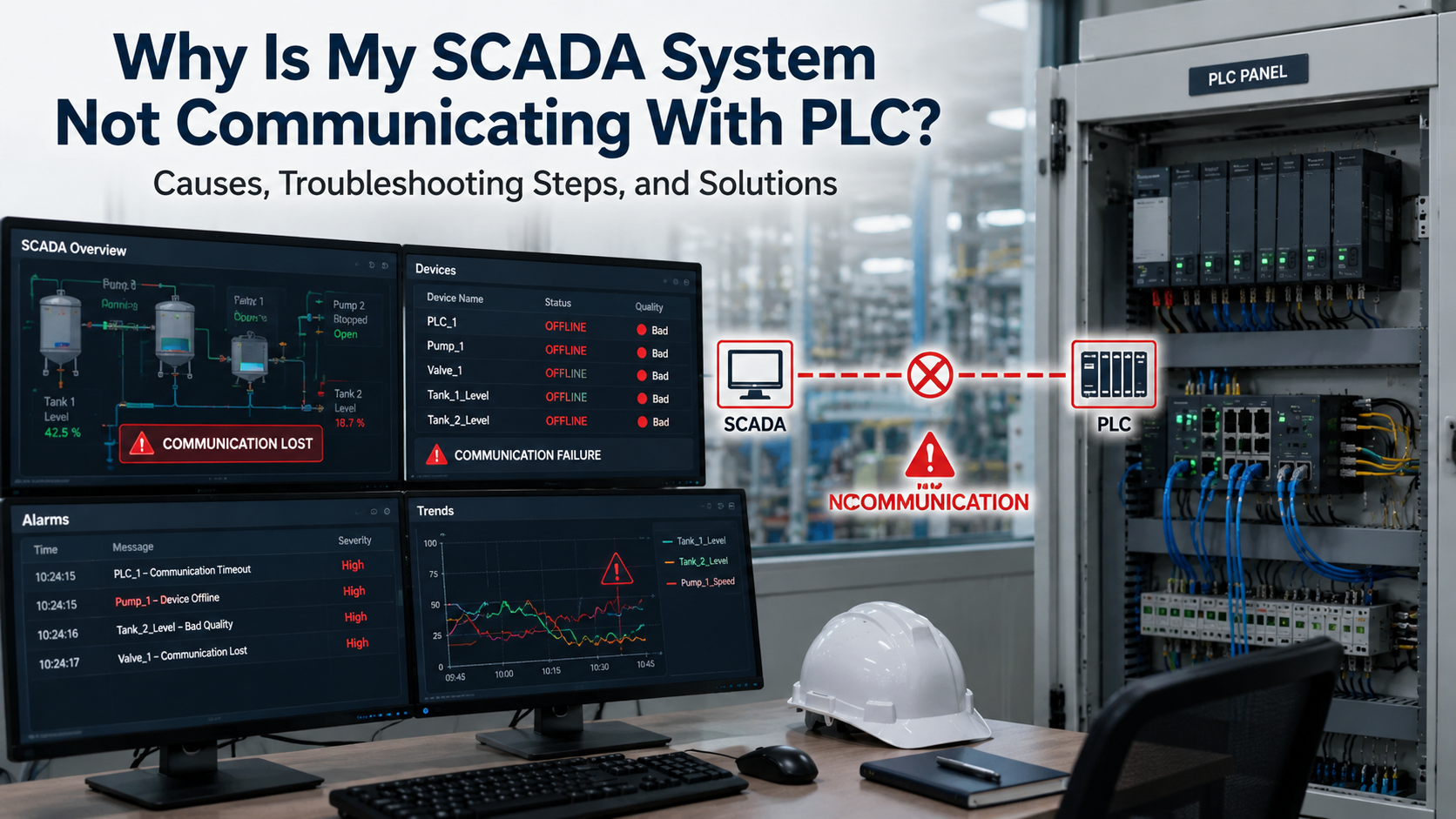
A SCADA system may fail to communicate with a PLC because of network issues, incorrect IP settings, protocol mismatches, cable faults, firewall restrictions, driver configuration errors, or PLC hardware problems. Identifying the root cause requires systematic troubleshooting across network, software, and hardware layers.
Understanding How SCADA and PLC Communication Works
SCADA (Supervisory Control and Data Acquisition) software collects real-time data from PLCs (Programmable Logic Controllers) to monitor and control industrial processes. The PLC handles field-level control, while SCADA provides visualization, alarming, and reporting at the supervisory level.
Communication between SCADA and PLC follows a defined path: the SCADA server polls the PLC at set intervals using a specific industrial protocol. If any layer in that path fails, data stops flowing and tags go bad.
Common communication protocols used between SCADA and PLC:
| Protocol | Type | Typical Use |
|---|---|---|
| Modbus TCP | Ethernet | General automation, legacy systems |
| Modbus RTU | Serial (RS-485) | Older PLCs, remote devices |
| Ethernet/IP | Ethernet | Allen-Bradley, Rockwell systems |
| PROFINET | Ethernet | Siemens, industrial Ethernet |
| OPC UA | Ethernet | Vendor-neutral, IIoT integration |
| Profibus | Serial | Siemens legacy field devices |
Each protocol has specific port numbers, addressing formats, and configuration requirements. A mismatch at any point breaks communication entirely.
Why Is My SCADA System Not Communicating With PLC?
The most common causes are IP address conflicts, protocol mismatches, damaged cables, PLC stop mode, driver misconfiguration, firewall blocks, hardware faults, network switch issues, and OPC server errors. Each cause has distinct symptoms and a defined fix.
Incorrect PLC IP Address Settings
This is one of the most frequent causes of SCADA-to-PLC communication failure.
If the PLC IP address entered in the SCADA driver does not match the actual PLC IP, the SCADA server cannot reach the device. Common problems include:
- IP address conflicts where two devices share the same IP on the network
- Wrong subnet mask preventing cross-segment communication
- Incorrect default gateway blocking traffic between network segments
- PLC IP changed after maintenance without updating SCADA configuration
Always confirm the PLC IP directly using the programming software (TIA Portal, Studio 5000, GX Works) rather than relying on documentation that may be outdated.
Communication Protocol Mismatch
SCADA and PLC must use the same protocol on the same port. If the SCADA driver is configured for Modbus TCP but the PLC is only running Ethernet/IP, communication will fail immediately.
Common mismatch scenarios:
- SCADA configured for OPC DA connecting to an OPC UA server
- Modbus function codes set incorrectly for the PLC data register type
- Wrong port number (Modbus TCP defaults to port 502; Ethernet/IP uses port 44818)
- Driver selecting wrong PLC series (e.g., Mitsubishi Q-series driver used for L-series PLC)
Check both the SCADA driver settings and the PLC communication module settings side by side to confirm protocol alignment.
Damaged Ethernet or Serial Cables
Physical layer problems are easy to overlook but responsible for a significant number of communication failures in industrial environments.
Signs of cable-related issues:
- Intermittent disconnections that resolve temporarily
- Communication working for some devices but not others on the same line
- Errors that appear after vibration, equipment movement, or panel work
Check for loose RJ-45 connectors, bent pins, cable damage near conduit entry points, and failed patch cables. For serial communication, inspect RS-485 lines for correct termination resistors and shielding continuity.
PLC Is in Stop Mode
SCADA cannot read process data from a PLC in STOP mode. In STOP mode, the PLC CPU is not executing the ladder logic scan, and many PLCs will not respond to communication requests from external devices.
How to check:
- Look at the RUN/STOP LED on the PLC CPU module
- Connect via programming software and check CPU operating status
- Review the PLC diagnostic buffer for stop causes (e.g., program fault, watchdog timeout)
Returning the PLC to RUN mode typically restores communication immediately, but the underlying cause of the stop condition must be investigated before restarting production.
SCADA Driver Configuration Errors
The SCADA communication driver is software that translates between the SCADA tag database and the PLC protocol. Misconfiguration here is a leading cause of tags showing bad quality even when the network is healthy.
Common driver errors:
- Wrong device address or station number (critical for Modbus RTU and Profibus)
- Incorrect tag register addresses (e.g., reading holding register 40001 as input register 10001)
- Node ID mismatch in OPC UA configuration
- Polling timeout set too short for slow network or large tag count
- Wrong data type assigned to a tag (e.g., reading a REAL value as INT)
Validate driver settings using the PLC manufacturer’s address mapping documentation. Most SCADA platforms have a built-in diagnostic console that shows per-device communication status.
Firewall or Antivirus Blocking Communication
Windows-based SCADA servers frequently have firewall rules that block industrial protocol ports. This is especially common after Windows updates, new antivirus installations, or IT security policy changes.
Ports commonly blocked:
| Protocol | Port |
|---|---|
| Modbus TCP | 502 |
| Ethernet/IP | 44818 (TCP), 2222 (UDP) |
| OPC UA | 4840 |
| PROFINET | 34964 (UDP) |
| DNP3 | 20000 |
To test: temporarily disable the Windows firewall on the SCADA server and attempt communication. If communication resumes, add specific inbound/outbound rules for the required ports rather than leaving the firewall disabled.
PLC Hardware Failure
Hardware faults in the PLC communication module or CPU can cause complete communication loss.
Indicators of hardware failure:
- Communication LED on the PLC module is off or showing fault
- PLC visible to ping but SCADA still cannot read tags
- PLC diagnostic buffer showing hardware error codes
- Communication worked previously and failed suddenly with no configuration changes
Common hardware failures include failed Ethernet communication cards, damaged CPU communication ports, and power supply issues causing intermittent resets. In these cases, replacing the communication module or CPU is required.
Network Switch Problems
Industrial Ethernet switches, especially managed switches, can cause communication failures if misconfigured.
Issues seen with network switches:
- VLAN misconfiguration isolating the PLC from the SCADA server
- Port speed mismatch (PLC expects 10 Mbps, switch port set to 1 Gbps forced)
- Spanning Tree Protocol (STP) delays causing communication timeouts during network topology changes
- Failed switch ports showing link-down state
Use an unmanaged industrial switch for simple topologies. For managed switches, verify port settings match the PLC communication module specifications.
OPC Server Configuration Problems
When using an OPC server as middleware between SCADA and PLC, configuration errors in the OPC layer add another potential failure point.
Common OPC issues:
- OPC DA configured when the PLC driver supports OPC UA only
- DCOM security settings blocking OPC DA connections (Windows)
- Expired or untrusted security certificates in OPC UA
- OPC server not running as a service (crashes on user logout)
- Wrong PLC connection defined in the OPC server project
Check the OPC server’s own diagnostic log first. It often shows exactly which connection failed and why.
Symptoms That Indicate SCADA and PLC Communication Failure
Identifying symptoms quickly narrows the troubleshooting path.
| Symptom | Likely Cause |
|---|---|
| Tags showing “Bad Quality” | Driver error, OPC server issue, network loss |
| Communication timeout alarms | Network latency, PLC not responding, wrong IP |
| Values frozen and not updating | PLC in STOP mode, polling failure |
| Devices showing “Offline” in SCADA | IP unreachable, cable fault, switch issue |
| Frequent disconnections | Intermittent cable, network instability |
| Alarm flooding on startup | SCADA attempting to reconnect repeatedly |
| Some tags good, some bad | Partial driver config error, register addressing |
How to Troubleshoot SCADA Communication Problems Step by Step
Work through these steps in order. Most communication failures are resolved by Step Four.
Step One: Verify PLC Power and CPU Status
Confirm the PLC is powered on and the CPU is in RUN mode. Check the RUN LED indicator on the CPU module. If it is in STOP or FAULT mode, check the PLC diagnostic buffer using the programming software to identify the cause before proceeding.
Step Two: Check Network Connectivity
From the SCADA server, open a command prompt and ping the PLC IP address:
ping 192.168.1.10If ping fails:
- Confirm the PLC IP using the programming software
- Verify the SCADA server and PLC are on the same subnet or a routed path exists
- Check the switch between them
If ping succeeds but SCADA still cannot communicate, the issue is at the software/protocol layer, not the network layer.
Step Three: Inspect Cables and Switches
Physically inspect Ethernet or serial cables. Look at switch port LEDs for link activity. Swap to a known-good cable if in doubt. Test from a laptop directly connected to the PLC port to eliminate switch variables.
Step Four: Confirm Protocol Settings
Open the SCADA driver configuration and the PLC programming software side by side. Verify:
- Protocol type matches on both sides
- Port number is correct
- For Modbus RTU: baud rate, parity, stop bits, and slave address match exactly
- For OPC UA: endpoint URL and security mode match
A single digit difference in a port number or baud rate setting will prevent communication entirely.
Step Five: Validate SCADA Tags and Device Drivers
Review the SCADA tag list and confirm each tag’s register address maps correctly to the PLC data register. Cross-reference with the PLC program variable list or I/O map. Incorrect addresses return bad quality tags even when the communication channel is healthy.
Also verify the polling interval is not set too aggressively for the number of tags and network speed.
Step Six: Examine Firewall Settings
On the SCADA server, navigate to Windows Defender Firewall and check inbound/outbound rules for the relevant protocol ports. Add exceptions for the specific ports used by your industrial protocols. Test again after updating rules.
Step Seven: Review Error Logs
Check three log sources:
- PLC diagnostic buffer for hardware and communication errors
- SCADA alarm and event log for driver-specific error messages
- Windows Event Viewer on the SCADA server for OPC server crashes or network errors
Error codes in these logs usually point directly to the root cause.
Common Errors Seen in SCADA Systems
Timeout Errors
The SCADA driver sent a request to the PLC but received no response within the configured timeout window. Causes: PLC not reachable, polling interval too short, network congestion.
Device Offline Errors
The SCADA system marked the PLC as offline after repeated failed communication attempts. Requires checking network connectivity and PLC status before the device can be brought back online.
OPC Server Connection Failed
The SCADA client cannot connect to the OPC server. Causes: OPC server service not running, DCOM security error, wrong server name or endpoint URL.
Invalid Tag Address Errors
The register address in the SCADA tag does not exist in the PLC memory map. Causes: incorrect data type prefix, address out of range, wrong PLC model selected in driver.
Quality Bad Status
The SCADA tag is receiving no valid data from the PLC. Most common cause after network issues: driver configuration error or PLC in STOP mode.
Communication Driver Failure
The SCADA communication driver crashed or failed to initialize. This affects all tags associated with that driver. Restart the driver service and check the SCADA server event log for error codes.
PLC Brands Commonly Affected by Communication Issues
Siemens PLC Communication Problems
Siemens S7-300, S7-400, S7-1200, and S7-1500 PLCs communicate via PROFINET, Modbus TCP, and OPC UA (S7-1500). Common issues include incorrect rack and slot number in the S7 driver, PUT/GET communication not enabled in TIA Portal, and connection limit reached on the CPU.
Allen-Bradley PLC Communication Problems
Rockwell Automation PLCs use Ethernet/IP as the primary protocol. Common problems include incorrect slot number for the controller, backplane communication errors in ControlLogix chassis, and RSLinx Classic driver conflicts with FactoryTalk Linx.
Mitsubishi PLC Communication Problems
Mitsubishi MELSEC Q, L, and iQ-R series PLCs use MC Protocol (Ethernet) and Modbus. Common issues include incorrect network number and station number configuration, wrong MC Protocol format (3E vs 4E frame), and communication parameter settings not written to PLC flash memory.
Schneider Electric PLC Communication Problems
Schneider Modicon M340 and M580 PLCs use Modbus TCP and EtherNet/IP. Common issues include Unity Pro Ethernet configuration not downloaded to PLC, IP address conflicts on the plant network, and Modbus holding register addressing offset errors.
Omron PLC Communication Problems
Omron CJ2 and NX/NJ series PLCs use FINS protocol over Ethernet and serial. Common issues include FINS network address and node address mismatch, UDP port 9600 blocked by firewall, and unit number configuration errors.
Delta PLC Communication Problems
Delta DVP and AS series PLCs use Modbus RTU and Modbus TCP. Common issues include RS-485 termination resistance not installed, baud rate and parity mismatch between PLC and SCADA, and incorrect Modbus slave address.
Preventing Future SCADA Communication Failures
Reactive troubleshooting costs production time. These practices reduce recurrence:
- Document your network: Maintain an up-to-date IP address list for every PLC, HMI, and SCADA server on the plant network
- Use industrial Ethernet switches: Consumer-grade switches are not rated for industrial environments; use DIN-rail mounted managed switches from brands like Cisco IE, Hirschmann, or Moxa
- Implement redundant communication paths: Configure Ethernet media redundancy (MRP or PRP) for critical SCADA links
- Monitor network health: Use network monitoring tools to track latency, packet loss, and port utilization
- Schedule preventive maintenance: Inspect cables, connectors, and switch ports quarterly
- Keep firmware updated: Outdated PLC firmware and SCADA drivers introduce compatibility issues over time
- Regularly verify IP address assignments: Use DHCP reservations or static IP assignments with documentation to prevent conflicts
When Should You Call a SCADA Troubleshooting Expert?
Some situations go beyond basic troubleshooting and require specialized expertise.
Contact a SCADA communication specialist when you are dealing with:
- Repeated communication losses with no clear root cause after completing standard troubleshooting steps
- Random disconnections that correlate with no obvious event
- Legacy system integration involving older Profibus or serial-based PLCs connecting to modern SCADA platforms
- OPC server failures affecting multiple PLC connections simultaneously
- Multi-vendor PLC communication problems where different brands must communicate through one SCADA system
- Production downtime directly caused by SCADA-to-PLC communication loss where internal teams cannot identify the fault
Attempting to fix complex communication issues without the right diagnostic tools or protocol-level knowledge can extend downtime and risk further damage to production systems.
How AutomatexLab Helps Resolve SCADA and PLC Communication Issues
AutomatexLab provides remote and on-site SCADA troubleshooting support for manufacturing and industrial facilities. Services are focused on fast fault identification and minimal production disruption.
Remote SCADA Troubleshooting
AutomatexLab engineers can diagnose SCADA communication failures remotely using secure remote access tools. Remote diagnosis covers network configuration review, driver configuration audit, tag address validation, and OPC server health checks, without requiring on-site travel for initial triage.
PLC Network Diagnostics
Full network-layer diagnostics including IP address audit, switch configuration review, VLAN verification, and packet-level analysis to identify where communication is breaking down.
Protocol Configuration Support
Configuration support for Modbus TCP, Modbus RTU, Ethernet/IP, PROFINET, OPC UA, and Profibus protocols across all major PLC brands including Siemens, Allen-Bradley, Mitsubishi, Schneider Electric, Omron, and Delta.
OPC Server Setup and Repair
Installation, configuration, and repair of OPC DA and OPC UA servers including Kepware, Matrikon, and native manufacturer OPC servers. Includes DCOM security configuration for OPC DA and certificate management for OPC UA.
SCADA Tag and Driver Configuration
Complete tag database audit and correction service. AutomatexLab reviews tag addresses, data types, polling intervals, and driver settings to eliminate bad quality tags and communication timeout errors.
Legacy System Migration Assistance
Support for migrating older serial-based SCADA communication setups to modern Ethernet protocols, including Profibus to PROFINET migration and Modbus RTU to Modbus TCP conversion projects.
Industrial Network Optimization
Network architecture review and optimization for plant-floor Ethernet networks, including switch placement, network segmentation, and redundancy configuration to improve SCADA system reliability.
FAQs
The most common causes are incorrect IP address settings, protocol or port mismatch between SCADA driver and PLC, PLC in STOP mode, damaged network cable, or driver configuration errors. Start by pinging the PLC from the SCADA server to confirm network connectivity, then verify driver and protocol settings.
Ping the PLC IP from the SCADA server. Check the communication LED on the PLC module. Open the programming software and confirm live connection. In SCADA, check if at least one tag from that device is showing good quality data.
Yes. Windows Firewall and third-party security software frequently block industrial protocol ports such as 502 (Modbus), 44818 (Ethernet/IP), and 4840 (OPC UA). Add inbound and outbound rules for these ports on the SCADA server to resolve firewall-related communication failures.
Bad quality tags typically indicate communication interruption, incorrect register addresses, OPC server failure, or PLC in STOP mode. Check the SCADA driver diagnostic log to identify whether the issue is at the connection level or the tag address level.
Modbus TCP, Ethernet/IP, PROFINET, OPC UA, Modbus RTU, and Profibus are the most widely used protocols. Protocol selection depends on the PLC brand, hardware generation, and SCADA platform compatibility.
Yes. Loss of SCADA-to-PLC communication prevents operators from monitoring process variables and issuing control commands, which can trigger automatic safety shutdowns or require manual intervention that halts production.